

Tutorials
Lesson 0: Back to Zero
Get back to Zero if its panel or page disappears.
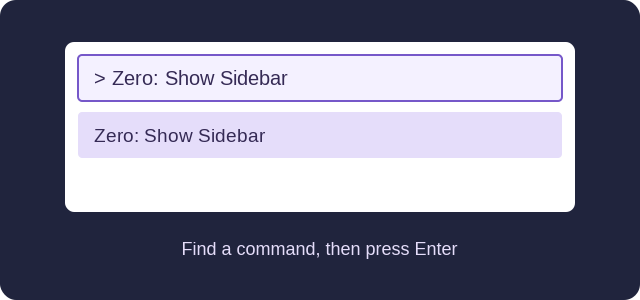
1. Open the Command Palette
In Zero, open the Command Palette with the shortcut for your computer:
Cmd+Shift+PCtrl+Shift+P
A box opens near the top of the window. This is different from Cmd+PCtrl+P, which opens a file picker.
Type a command below, then select it or press Enter. If the box closes, use the shortcut again.
2. Practise finding things
- Run
Zero: Show Sidebar. The Zero controls should appear in the sidebar. - Run
Zero: Show Project Explorer. The project view should appear in the sidebar, with your project files when a project is open. - Run
Zero: Start Page. The Start Page should open in an editor tab. - Run
Zero: Tutorial docs. The tutorial website should open beside your code, or in your regular browser. Return to this lesson from the tutorial list if you want to practise again.
You can switch between open editor tabs without closing your project. Try opening the sidebar and Start Page again to see how to get back to them.
If no project is open
The sidebar can appear without project files. To open an existing project, open Zero: Start Page, then choose:
Project → Open
Select your existing local Zero project folder. If you do not have a project yet, you can still read the tutorials. When you are ready to create one, sign in to GitHub, complete access setup if needed, and choose:
Project → New
Reading these pages does not require creating an account or repository.
You know how to find your way back!