

Coin Game
Lesson 10: Refactor a busy Main
Extract input controls and reuse a score display in your existing projects.
First checkpoint: move input into one ordinary class and keep the game behaving the same.
Reopen your Coin game from lesson 5. If it is already open, continue in that project. Otherwise, on the Zero Start Page, choose:
Project → Open
Select your existing Coin project folder. If you do not have a local clone, choose this instead:
Project → Clone
Clone your own Coin repository from GitHub. Continue in that same repository, rather than starting a new project.
1. Start a branch for the refactor
Start from the working main checkpoint you committed and synced at the end of lesson 5. In the Project panel, click the current branch name, main, then choose:
New branch…
Enter coin-refactor and press Enter. Check that coin-refactor appears as
the current branch. Keep this local branch through the first part of lesson 11.
2. Find one job to extract
Your Coin game's Main now reads keys, moves Player, checks coins, tracks points,
changes labels and draws. Those jobs work, but the class is getting busy.
A refactor changes how code is organized while preserving its behaviour.
Run the unchanged game using the checks in step 5 and record the results first.
Then extract the input handling from Main's update(double seconds).
They answer two questions: which horizontal direction and which vertical direction is held? Player already accepts those answers. Give input its own class without changing Player's movement, coin positions, scoring, win rule or Restart.
3. Write PlayerInput.java
Create java/PlayerInput.java in the same game folder as Main and Player:
import zero.GameApp;
import zero.Key;

public class PlayerInput {
    private final GameApp game;

    public PlayerInput(GameApp game) {
        this.game = game;
    }

    public int horizontal() {
        int direction = 0;
        if (game.keyDown(Key.LEFT)) direction--;
        if (game.keyDown(Key.RIGHT)) direction++;
        return direction;
    }

    public int vertical() {
        int direction = 0;
        if (game.keyDown(Key.UP)) direction--;
        if (game.keyDown(Key.DOWN)) direction++;
        return direction;
    }
}
Each method returns -1, 0 or 1. Left and Right together cancel; so do Up and Down.
The constructor stores a reference to the existing GameApp. final prevents
replacing that reference; it does not freeze the app's changing input state.
PlayerInput is your ordinary Java class, with no superclass or framework callback.
4. Make Main ask for directions
In the game Main.java, add the input field; replace the matching lines with the copied code:
    private Player player;
    private PlayerInput input;
In setup(), create the helper once; replace the matching lines with the copied code:
    @Override public void setup() {
        input = new PlayerInput(this);
As with player.draw(this), this is the running Main object, which is a GameApp.
Remove import zero.Key; from Main; PlayerInput now uses it. In update(), replace the full matching range from if (won) return; through player.update(...) with the copied code:
        if (won) return;
        int horizontal = 0;
        int vertical = 0;
        if (keyDown(Key.LEFT)) horizontal--;
        if (keyDown(Key.RIGHT)) horizontal++;
        if (keyDown(Key.UP)) vertical--;
        if (keyDown(Key.DOWN)) vertical++;
        int horizontal = input.horizontal();
        int vertical = input.vertical();
        player.update(horizontal, vertical, seconds, width(), height());
5. Run and prove the refactor kept behaviour
Before adding a feature, run the game and check the same cases as before:
- Click the canvas; hold and release each arrow. Movement stops on release and the whole square stays inside every edge.
- Hold Right + Up for diagonal movement. Left + Right cancels horizontal motion; Up + Down cancels vertical motion. Release all keys and check that movement stops.
- Hold an arrow, switch to another window, then return and click the canvas. No old held key should keep moving the Player.
- Collect a coin and stay on it: it scores once. Restart before winning and after collecting all three; points, coins and Player's position reset as before.
Player still applies its existing speed separately to x and y, so diagonal travel is faster than travel along one axis. Preserve that rule in this refactor. Changing the speed rule would be a separate feature with its own checks. If behaviour changed, compare the old and new direction calculations first.
Save your files on coin-refactor. In the commit message field, enter
Extract PlayerInput, then choose:
Commit
6. Create ScoreDisplay.java
Create java/ScoreDisplay.java in the Coin game folder:
import zero.ui.Element;
import zero.ui.Label;

public class ScoreDisplay {
    private final Label label = new Label("Score: 0");

    public void setScore(int points) {
        label.setText("Score: " + points);
    }

    public Element view() {
        return label;
    }
}
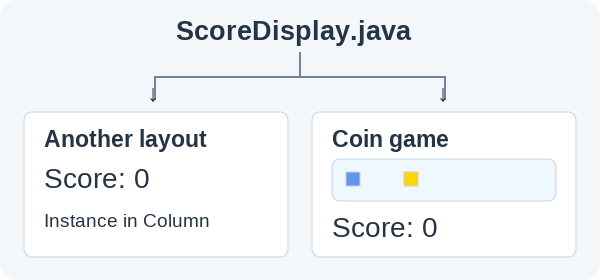
Each new ScoreDisplay() creates one Label through the field initializer. Java
supplies the no-argument constructor because you have not written another
constructor. view() returns an Element that the caller can place in a Row or
Column. Label is an Element; ScoreDisplay remains an ordinary class.
setScore(int) changes the label explicitly. No framework registration,
component subclass or hidden update is involved.
7. Use the display in your Coin game
In Main.java, replace the matching line with the copied code:
    private Label scoreLabel;
    private ScoreDisplay score;
In setup(), replace the matching line with the copied code:
        scoreLabel = new Label("");
        score = new ScoreDisplay();
In setup(), replace the matching line with the copied code:
        controls(new Row(12, scoreLabel, message, restartButton));
        controls(new Row(12, score.view(), message, restartButton));
In restart(), replace the matching line with the copied code:
        scoreLabel.setText("Score: 0");
        score.setScore(points);
In update(), replace the matching line with the copied code:
                scoreLabel.setText("Score: " + points);
                score.setScore(points);
Keep showGame() at the end of Restart and the message Label and game rules in Main.
8. Run and test the Coin game
Collect a coin and stay on it (Score: 1), Restart during play (Score: 0),
collect all three (Score: 3), then Restart after winning. Check that movement
still works. Main owns the points and tells ScoreDisplay when they change.
Save your files and enter Extract ScoreDisplay, then choose:
Commit
9. Improve the display and check it
Try changing the displayed word from Score to Points. In ScoreDisplay.java, replace each matching line with the copied code:
    private final Label label = new Label("Score: 0");
    private final Label label = new Label("Points: 0");
        label.setText("Score: " + points);
        label.setText("Points: " + points);
Run the game and check the initial display, a collected coin and Restart. You changed presentation in one class without changing the scoring rules in Main. Before lesson 11, restore Score by replacing each matching line with the copied code:
    private final Label label = new Label("Points: 0");
    private final Label label = new Label("Score: 0");
        label.setText("Points: " + points);
        label.setText("Score: " + points);
Run again and confirm the display says Score. Keep both commits on
coin-refactor. You will add another checkpoint, sync the branch and merge it
into main in lesson 11.
After writing your own code, compare game Main, ScoreDisplay.java and PlayerInput.java. Checkpoint 10 keeps arrow-only input. The other two files in the finished game are Player.java and Coin.java.
PlayerInput owns direction queries; ScoreDisplay owns presentation; game Main
owns the score and rules. These helpers belong to your project, alongside Main
(or in your own package when you learn packages). Do not put them in zero.* or
edit Zero's framework source to add them. You could copy your ScoreDisplay source
into another project and create a separate instance there; each project owns its
copy and can improve it independently. In lesson 11, practise
evaluating and sharing a small CreditsBadge component. Copies of that practice
library are expected. The optional extension applies the same checks to your own
original idea.
Reusable views
view() is your convention, not a Zero callback. A component can create its
controls in its constructor or field initializers, return an Element through view(), and
expose a few methods such as setScore(...). Main creates it once in setup,
places its view, then sends new values explicitly after state changes.
Reuse the class in another layout by creating a separate instance: one live
Element can belong to only one parent. A component may contain other components;
a HUD can include a ScoreDisplay and a message Label. Main still owns points,
win flags and actions such as restart(). If a component contains a button,
Main can supply its action through the constructor, for example a Runnable
parameter passed to button.onClick(onRestart).
Player uses a different useful convention: Main calls its update(...) and
draw(GameApp app) methods. Player does not need a view() because it draws
onto the canvas. These are ordinary classes with methods chosen for their jobs.
Screens and app flow
Keep one running Main application. GameApp already extends App; a screen or HUD is an object inside that application, not another App to launch.
For a later welcome or result screen, an ordinary class can build a layout and
return it from view(). Main can call show(startScreen.view()) and later
show(resultScreen.view()) in an action. show(...) replaces App's visible
content. Showing another view does not automatically reset game state; use
explicit methods such as restart() to change state and refresh controls.
In GameApp, mount a live HUD with controls(new Row(...)) or a Column. Build
controls once in setup rather than rebuilding them each frame. Updating those
controls keeps the canvas, updates and drawing active. Showing another UI view
with show(...) instead suspends gameplay updates, drawing and canvas input.
showGame() returns to the retained game and HUD, clearing old input and elapsed
time; an explicitly paused game stays paused until resume(). Main still owns
score, level and playing rules. Changing levels can replace ordinary game objects
without navigating away or creating another application.
A drawn screen can instead define draw(GameApp app). Main calls
gameScreen.draw(this) from its draw method. If that screen owns a Player, it
can call player.draw(app) inside its own method, passing the same reference
onward. As in lesson 4, both draw
onto the existing canvas; neither creates another application. Keep state changes
in explicit actions or update methods rather than hiding them in drawing.
You made Main easier to read and reused a component!