

Coin Game
Lesson 5: Build a coin game
Build a game with coins, score, winning and restart.
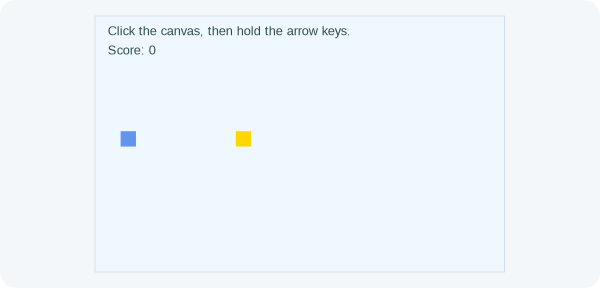
First checkpoint: collect one coin exactly once.
Continue the same Coin game project from lesson 4. If it is not open, choose this on the Start Page:
Project → Open
Select your existing project folder. If you need a local clone of your repository, choose Project → Clone instead. Keep the Player and Main you wrote.
1. Add a contact method before draw()
In Player.java, add touches before draw; replace the matching lines with the copied code:
    public boolean touches(double otherX, double otherY, double otherSize) {
        return x + size >= otherX && x <= otherX + otherSize
                && y + size >= otherY && y <= otherY + otherSize;
    }
    public void draw(GameApp app) {
Both horizontal and vertical ranges must meet. The comparisons count touching an edge.
2. Write Coin.java
In Project Explorer, right-click java and choose:
New class…
Name the class Coin. When Coin.java opens, select all the text, paste the complete code block below, and save the file.
import zero.Color;
import zero.GameApp;

public class Coin {
    private final double x;
    private final double y;
    private final double size = 24;
    private boolean collected;

    public Coin(double x, double y) {
        this.x = x;
        this.y = y;
    }

    public boolean isCollected() { return collected; }
    public boolean touches(Player player) { return player.touches(x, y, size); }
    public void collect() { collected = true; }

    public void draw(GameApp app) {
        if (collected) return;
        app.fill(Color.GOLD);
        app.rect(x, y, size, size);
    }
}
Coin owns its position and collection state. Main owns the score.
3. Collect one coin
In Main.java, add the coin and points fields; replace the matching lines with the copied code:
    private Player player;
    private Coin coin;
    private int points;
4. Place the coin
In setup(), add the coin assignment; replace the matching lines with the copied code:
        player = new Player(40, 180);
        coin = new Coin(220, 180);
5. Collect the coin on contact
In update(), add the collection check; replace the matching lines with the copied code:
        player.update(horizontal, vertical, seconds, width(), height());
        if (!coin.isCollected() && coin.touches(player)) {
            coin.collect();
            points++;
        }
6. Draw the score and coin before the player
In draw(), add the score and coin drawing before the player; replace the matching lines with the copied code:
        text("Score: " + points, 20, 60);
        coin.draw(this);
        player.draw(this);
7. Run and collect the coin once
If the movement demo from lesson 4 is still running, choose Stop. Then
choose Run and click the canvas. Touch the coin, stay there, leave, and
return. The coin should disappear and the score should become 1 only once.
The !coin.isCollected() check prevents a point every frame. If you remove
it, contact can repeatedly score even though Coin no longer draws. Put it back
before saving the working game.
8. Save the one-coin game on main
Stop the game and save your files. In the Project panel, check that main
is selected. Enter Collect one coin in the commit message field, then choose:
Commit
Once Zero confirms the local commit, choose:
Sync
When Sync finishes, click your repository name and choose Open on GitHub.
Check that main shows Collect one coin.
9. Start a branch for the next version
A branch lets you build the next version while main keeps the working one-coin game. In the Project panel, click main, then choose:
New branch…
Enter coin-score and press Enter. Check that coin-score is selected. The
next two commits will save working versions on this branch.
10. Add a score and Restart below the canvas
Zero controls can sit below the canvas. In Main.java, add the control imports; replace the matching lines with the copied code:
import zero.GameApp;
import zero.ui.Button;
import zero.ui.Label;
import zero.ui.Row;
11. Add label fields
In Main.java, add the label fields; replace the matching lines with the copied code:
    private int points;
    private Label scoreLabel;
    private Label message;
12. Create the controls
In setup(), replace the two assignments with controls created once and a call to restart(). Copy the block over the matching lines:
        player = new Player(40, 180);
        coin = new Coin(220, 180);
        scoreLabel = new Label("");
        message = new Label("");
        var restartButton = new Button("Restart");
        restartButton.onClick(() -> restart());
        controls(new Row(12, scoreLabel, message, restartButton));
        restart();
13. Move the starting state into restart()
The two assignments you replaced now belong in restart(). Add the method below setup() by replacing the matching lines with the copied code:
        restart();
    }
    public void restart() {
        player = new Player(40, 180);
        coin = new Coin(220, 180);
        points = 0;
        scoreLabel.setText("Score: 0");
        message.setText("Collect the gold square.");
        showGame();
    }
14. Update the score label after collection
In update(), add the score label update; replace the matching lines with the copied code:
            points++;
            scoreLabel.setText("Score: " + points);
In draw(), find and remove the old canvas score line:
text("Score: " + points, 20, 60);
Restart should restore the coin, Player's position and score without creating another control row. showGame() returns keyboard focus to the retained canvas and clears held input; it keeps the existing control row. It also works here when the game is already showing.
15. Test and commit the score and Restart
Choose Run. Check that the score below the canvas starts at 0 and changes to 1 when you collect the coin. Stay on the coin to check that it scores only once. Click Restart. The coin and the player's starting position should return, and the score should reset to 0. Collect the coin again to check that Restart set up a fresh game.
Choose Stop and save your files on coin-score. Enter
Add score and Restart controls and choose:
Commit
This checkpoint is saved on coin-score. Stay on the branch for the next change.
16. Grow to three coins and a win
In Main, copy the block over the matching field:
    private Coin coin;
    private Coin[] coins;
    private boolean won;
In restart(), copy the block over the matching assignment:
        coin = new Coin(220, 180);
        coins = new Coin[] {
            new Coin(220, 180), new Coin(420, 80), new Coin(540, 300)
        };
        won = false;
        message.setText("Collect all " + coins.length + " coins.");
17. Stop movement after collecting every coin
In restart(), find and remove the earlier message line:
message.setText("Collect the gold square.");
At the start of update(), replace the matching line with the copied code:
    @Override public void update(double seconds) {
        if (won) return;
In update(), copy the block over the existing coin collection check:
        if (!coin.isCollected() && coin.touches(player)) {
            coin.collect();
            points++;
            scoreLabel.setText("Score: " + points);
        }
        for (Coin each : coins) {
            if (!each.isCollected() && each.touches(player)) {
                each.collect();
                points++;
                scoreLabel.setText("Score: " + points);
            }
        }
        if (points == coins.length) {
            won = true;
            message.setText("You win! Choose Restart.");
        }
18. Test and commit three coins and winning
In draw(), copy the block over the matching line:
        coin.draw(this);
        for (Coin each : coins) each.draw(this);
Main still explicitly updates Player and draws every object. Choose Run. Try Restart before collecting, after one coin and after winning. Each Restart should return the score to 0 with all three coins visible. When the score reaches 3, check for the win message and confirm that movement stops until Restart. If you change a coin's coordinates, keep each 24-pixel square within x 0–616 and y 0–376, then run these checks again.
Save your files on coin-score, enter Add three coins and a win condition, and choose:
Commit
After writing it, compare with checkpoint 9's Main.java, Player.java and Coin.java. Keep this project if you later try the optional component lessons.
19. Sync and merge your branch
Stop the game. With coin-score selected, choose:
Sync
The first Sync creates coin-score on GitHub and sends both saved commits.
When Sync finishes, open your repository on GitHub, switch to coin-score and
check its commit history for both messages.
In Zero, choose Merge beside the branch name and confirm Merge coin-score into main? Zero merges the branch and syncs main to GitHub.
20. Test the merged game on main
Check that main is selected in Zero. Choose Run, collect all three coins and check for the win message. Try Restart and check that the score returns to 0 and the player can move again. Check that GitHub main shows the finished game before publishing.
21. Publish your game
After checking that you have permission to share the contents, stop the running app. Open the Run dropdown and choose:
Publish & open app
Wait for it to open. Play the game in your browser and try Restart. The published page and its contents are public, so include only material you have permission to share. If publication is unavailable for your repository or school account, follow your school or account policy and keep your repository visibility unchanged.
You built a coin game. Make it your own!