

Animated Pet
Lesson 7: Animate your pet
Make your pet move, flap and play a sound.
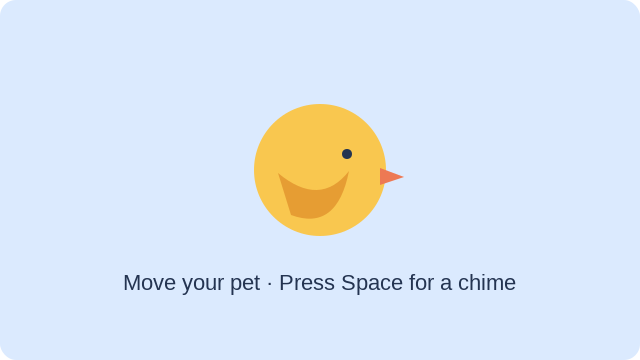
Continue the same Pet project from lesson 6. Open java → Main.java. Your last version shows one still bird. In this lesson you will move it, make its wings flap, and play a chime. Keep the pet folder and both assets from the last lesson.
The code blocks below show the lines to add and remove. Replace the matching lines in your file with the copied block. Do the edits in order; keep the other code in Main.java.
1. Add the key import
Add the Key import below ImageRegion:
import zero.ImageRegion;
import zero.Key;
2. Give the bird a position
Add an x field below petImage. It starts the bird at the same horizontal position as before.
    private ImageRegion petImage;
    private double x = 280;
3. Move the bird with the arrow keys
Add this update method above the existing draw method:
    @Override public void update(double seconds) {
        if (keyDown(Key.LEFT)) x -= 160 * seconds;
        if (keyDown(Key.RIGHT)) x += 160 * seconds;
        x = Math.max(0, Math.min(x, width() - 80));
    }

    @Override public void draw() {
4. Draw the bird at its new position
Replace the image line in draw so it uses x instead of the fixed number 280:
        image(petImage, 280, 150, 80, 64);
        image(petImage, x, 150, 80, 64);
5. Test movement
Save and choose Run. Click the canvas, then hold the left and right arrow keys. The still bird should move and stay inside the window. Stop the app before the next edit.
keyDown stays true while a key is held. Zero passes the elapsed time since the last frame as seconds; multiplying the speed by it keeps motion approximately consistent at different frame rates. The Math.max and Math.min line keeps the 80-pixel-wide bird inside the canvas.
6. Add the animation import
Add the animation import:
import zero.Key;
import zero.SpriteAnimation;
7. Give the pet an animation field
Replace the petImage field with a petAnimation field. Keep the x field underneath it.
    private ImageRegion petImage;
    private SpriteAnimation petAnimation;
8. Create the animation frames
In setup, keep the loadImage line and replace the single imageRegion assignment with four frames and an animation:
        var sheet = loadImage("/pet/bird-flap-sheet.png");
        petImage = imageRegion(sheet, 0, 0, 701, 561);
        ImageRegion[] frames = {
            imageRegion(sheet, 0, 0, 701, 561),
            imageRegion(sheet, 701, 0, 701, 561),
            imageRegion(sheet, 0, 531, 701, 561),
            imageRegion(sheet, 701, 531, 701, 561)
        };
        petAnimation = new SpriteAnimation(8, frames);
9. Advance the animation
In update, add one line after the line that keeps x inside the canvas:
        x = Math.max(0, Math.min(x, width() - 80));
        petAnimation.update(seconds);
10. Draw the animation
In draw, replace the old image line with the animation:
        image(petImage, x, 150, 80, 64);
        image(petAnimation, x, 150, 80, 64);
11. Test the animation
Save and choose Run. The bird should flap while it moves. Stop the app before the next edit. Try changing 8 to another number and run again; return it to 8 before continuing.
The sprite sheet is one picture containing four wing poses. Each imageRegion selects a rectangle: its first two numbers are the top-left corner, and the next two are its width and height. The lower row starts at 531 to fit the artwork. SpriteAnimation(8, frames) plays eight frames per second. update(seconds) advances the animation once per frame; image(...) draws its current frame.
12. Add the sound import
Add the sound import:
import zero.Key;
import zero.Sound;
import zero.SpriteAnimation;
13. Give the chime a field
Add the sound field beside the animation field:
    private SpriteAnimation petAnimation;
    private Sound chime;
    private double x = 280;
14. Load the chime
Load the chime once at the end of setup, after creating the animation:
        petAnimation = new SpriteAnimation(8, frames);
        chime = loadSound("/pet/chime.wav");
        chime.setVolume(0.25);
15. Play the chime
In update, add the Space-key action after the animation update:
        petAnimation.update(seconds);
        if (keyPressed(Key.SPACE)) {
            chime.stop();
            chime.play();
        }
16. Show the controls
In draw, add a short reminder above the image:
        background(Color.rgb(240, 248, 255));
        fill(Color.rgb(47, 79, 79));
        textSize(20);
        text("Click the canvas; arrows move, Space chimes.", 20, 30);
        image(petAnimation, x, 150, 80, 64);
17. Test the chime
Save and choose Run. Click the canvas and press Space: you should hear a chime. Check that the arrow keys and flapping still work. keyPressed detects a new press, so holding Space does not repeatedly start the sound. Stopping the previous sound before playing it lets a new press restart the chime. If you cannot hear it, check the device volume and the resources/pet/chime.wav filename; browser sound may also need a user gesture.
Compare your completed file with the movement checkpoint.
18. Save the working version
Save your files and check that main is selected. Review Main.java and the
two assets in Files. Enter Add pet movement, animation and sound and
choose Commit.
Choose Sync, then check that GitHub main contains Main.java,
bird-flap-sheet.png and chime.wav. You will start the refactor from this
working checkpoint.
Your pet is moving!